Crop, Trim Video Editor
- 4.6
- Rating
- 1.00M
- Installs
- Free
- Price

 Analysis by App-foxy
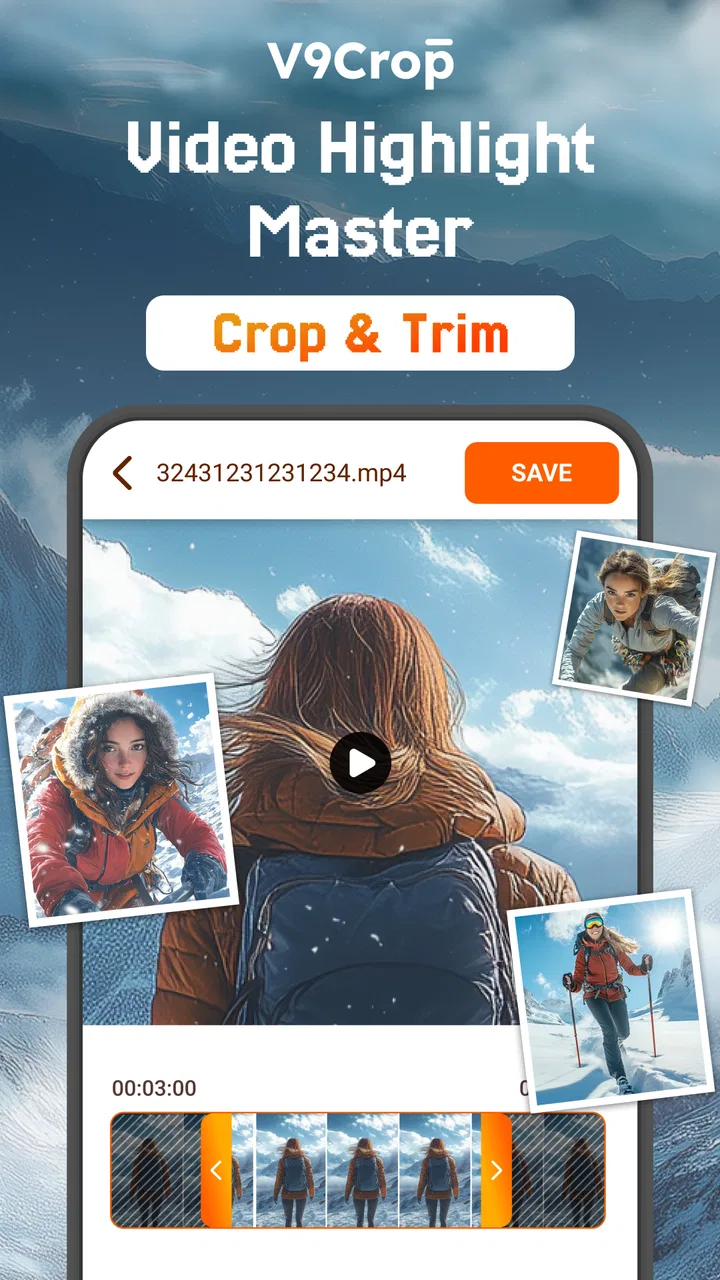
I spent time with Crop, Trim Video Editor as a straightforward mobile tool for making quick changes to clips, and its appeal became clear almost immediately: it is aimed at the moment when I need a video fixed, shortened, or prepared for sharing without opening a complicated editing suite. Developed by Eco Mobile Editor, this free app sits in the video players and editors category and focuses on practical jobs such as cropping footage, trimming sections, extracting audio, and improving video quality.
That focus matters. I would not choose it as a replacement for a full timeline editor, but I can see why it has attracted a 4.6 average from around 20K ratings and more than 1M installs. It is built around common problems rather than elaborate production work. If a clip is too long, framed badly, or carrying unnecessary audio, the app gives me a more direct route to a usable result.
What I found useful in everyday editing
The strongest part of the experience is its narrow purpose. Many mobile editors greet me with templates, music libraries, layers, transitions, stickers, and several panels before I have even selected the task I actually want. Crop, Trim Video Editor takes a more practical position. Its store short description, “Crop, Trim Video Editor,” accurately points toward the kind of work it is designed to handle, while the longer summary adds audio extraction and video-quality enhancement to that basic workflow.
You May Also Like

 Blood Strike: 2.5 Anniversary
Blood Strike’s Loadouts Turn Every Drop Into a Tactical Gamble
A close look at Blood Strike’s custom loadouts: how fast access to signature weapons reshapes its battle royale rhythm, rewards preparation, and narrows the gap between fights.

 Pandora - Music & Podcasts
Pandora’s Music Is Easy to Start, but Harder to Recover
Pandora’s strength is its low-effort path from a seed to a station. Its weak spot is how much confidence it asks you to place in connection, setup, and quiet recovery.

 8 Ball Pool
 Is Built on Rivalries, Rematches, and Routine
A close look at the rivalries, rematches, shared routines, and unanswered safety questions that turn a quick pool match into a persistent mobile community.

 Samsung Music
’s Quiet Strength Is Playing What You Already Own
Its reach comes less from spectacle than from dependable access to a personal library. That simplicity is both the app’s strongest retention engine and its ceiling.

 AccuWeather: Weather Radar
AccuWeather Review: A Quick, Clear Forecast for Everyday Decisions
For everyday plans, the best forecast is the one you can understand quickly. AccuWeather makes rain timing, radar, and local conditions easy to act on, with a few trade-offs.

 Hill Climb Racing
Why Hill Climb Racing Still Turns Crashes Into One More Run
A tiny car, a bumpy hill and one more upgrade: Hill Climb Racing keeps resurfacing because its simple chaos makes every near-miss feel personal.
More From Our News Desk



For a quick social post, this can be more convenient than a feature-heavy alternative. I might record a short cooking demonstration and discover that the counter takes up too much of the frame. Cropping lets me bring attention back to the food. If the beginning contains a few seconds of setup and the ending includes me reaching for the phone, trimming removes those distractions. If I want to reuse the spoken explanation separately, extracting the audio gives me another practical option.
The important distinction is that these are separate, targeted jobs. I would use the app when the original video is mostly good and needs correction, not when I want to build a story from many clips. That makes it suitable for casual creators, students preparing a presentation clip, families cleaning up phone recordings, and anyone who wants to make a video less awkward before sending it to someone else.
How the free access affects its value
The app is free to install, which makes trying the basic workflow relatively easy. That is useful for people who do not edit often and do not want to commit to a subscription before discovering whether the controls suit them. The age rating is Everyone, so its positioning is broad and accessible rather than aimed at a specialist audience.
There are in-app purchases priced from $2.99 to $48.00 per item. I would treat that range carefully rather than assuming every editing function is included at no cost or that every user will need to pay. The sensible approach is to install the free version, test the exact task I care about, and inspect the purchase screen before relying on the app for a larger project. The free entry point is a genuine advantage, but the paid value depends on what a particular user needs and which option is offered for that workflow.
For occasional trimming, the free starting point may be enough to make the app worthwhile. For repeated editing, I would compare the cost of any desired purchase with how often I expect to use the tool. A person who only fixes a clip once every few months may prefer a free editor already available on the phone. Someone who regularly needs the same focused operations could find a paid option more convenient if it removes friction, but I would make that decision only after testing the free experience.
Crop and trim are more useful than they sound
Cropping is not merely a cosmetic adjustment. It can rescue a vertical recording with too much empty space, remove a distracting edge, or make a subject more prominent in a square or portrait composition. I find it especially valuable when the camera was held casually and the intended subject ended up smaller than expected. A careful crop can make a clip feel deliberate without requiring filters or decorative effects.
Trimming has a similar practical benefit. It lets me remove the uncertain seconds before an event begins and the dead time after it ends. That is useful for a birthday message, a quick product demonstration, a pet video, or a clip recorded for a group chat. The best result often comes from removing very little: a clean opening and ending can make ordinary footage feel much more watchable.
My advice is to decide the destination before cropping. A tight crop that looks good in a portrait feed may feel uncomfortable when watched full-screen in landscape. I would keep the original file, make the crop conservatively, and preview the entire result rather than judging only the middle. This is one of the app’s likely strengths as a focused editor: the task encourages a quick correction, but the final framing still deserves a deliberate check.
Audio extraction creates a few practical workflows
The audio-extraction function gives the app a use beyond simple visual cleanup. I can imagine using it to save a spoken explanation from a video, keep a memorable sound separately, or listen to a recording without opening the visual file. It may also help when I want to reference the sound while preparing another project in a different editor.
There is a trade-off here. Extracting audio is convenient, but it does not automatically turn a noisy recording into a polished podcast or voice track. If the original video contains wind, background conversation, or uneven volume, separating the audio will preserve those problems unless another tool is used afterward. I would therefore see this feature as a handoff step, not a complete audio-production solution.
A useful workflow is to trim the video first, then extract audio from the shorter version when I only need one section. That avoids carrying unnecessary material into the audio file and keeps the result easier to organize. It is a small distinction, but it can save time when a long recording contains only one useful sentence or moment.
Video enhancement needs realistic expectations
The promise of improving video quality is attractive, especially for older phone footage or clips recorded in poor light. In practice, enhancement should be approached as an attempt to make footage more presentable, not as a way to recreate detail that the camera never captured. I would compare the result with the original and look for unwanted sharpening, unnatural edges, or a picture that appears too processed.
This is also where I would be more cautious about using the app for important memories. Before enhancing a family recording or an irreplaceable event, I would preserve the untouched original and export a separate version. That simple habit protects me from preferring an artificial-looking result or losing the source I may want later.
For casual sharing, modest improvement can be enough. A clip that is slightly dull or soft may look better after processing, but I would not expect the app to replace professional restoration software. Its value is in convenience: trying a quick improvement from the same place where I crop and trim, rather than moving immediately into a more demanding workflow.
Where it fits beside familiar alternatives
Compared with the editor built into a typical phone gallery, Crop, Trim Video Editor appears more focused on editing as its main purpose. A gallery editor is convenient when I only need to shorten a clip immediately after recording, and it may already be familiar. The dedicated app becomes more interesting when I want a combination of cropping, trimming, audio extraction, and enhancement in one focused tool.
Compared with a full mobile editor, the advantage is simplicity. Timeline-based apps are better when I need multiple clips, text, transitions, layered sound, or precise storytelling. They also tend to reward users who are willing to learn a more involved interface. I would choose one of those alternatives for a travel montage or a structured tutorial. For a single clip that needs cleaning up, opening a large editor can feel like using a toolbox for one loose screw.
The trade-off is depth. A focused tool may be faster for basic corrections, but it is not the place I would expect to manage a complete production. Anyone choosing this app should be clear about that boundary. Its value comes from reducing the number of steps for simple jobs, not from competing with every editing feature available on mobile.
Small habits that make the results better
First, I would always keep the original clip until I have checked the exported version. Editing mistakes are easy to miss when I watch only a short preview, especially after trimming close to a spoken word or an important movement. Keeping the source also lets me try a different crop later rather than starting again.
Second, I would make one change at a time when the clip matters. I might create a trimmed copy, inspect it, and then make a cropped version from the original rather than repeatedly processing the same file. This makes it easier to identify whether a problem came from the framing, the cut, or the enhancement step.
Third, I would use the shortest useful source for audio extraction. If I recorded ten minutes to capture one clear statement, I would trim around that statement before separating the sound. The result should be easier to share and less confusing to find later.
Finally, I would preview the clip in the orientation and shape in which it will be watched. A crop can look balanced in the editor and feel cramped in a messaging app. This is not a flaw unique to the application; it is a common editing mistake. The app’s focused tools make the correction quick, but they do not remove the need to think about the final viewing context.
Who will get the most from it
I think the best match is someone who edits individual clips rather than assembling complete videos. That includes a parent removing accidental footage from a family recording, a student preparing a short visual for class, or a small seller cleaning up a product clip before sending it to a customer. The app is also a reasonable starting point for a beginner who finds professional editors intimidating.
It may suit people with older devices as well, since it supports Android 8.0 and later. That does not guarantee identical performance on every phone, particularly when processing larger videos, but the compatibility range makes it accessible to users who are not running the newest hardware or operating system.
I would skip it if my main goal is advanced storytelling. A creator who needs several video tracks, detailed sound mixing, captions, animation, or complex timing should start with a more comprehensive editor. I would also hesitate if I need predictable professional output for paid work and cannot first test the exact export and enhancement behavior on my device.
What the current version tells me about choosing it
The current version is 1.2.7, and the app was released on September 22, 2024. Those details place it as a relatively young tool compared with long-established editing platforms. That is not automatically negative: a newer app can feel uncluttered and focused. Still, I would approach it as a practical utility to test against my own routine rather than assuming it has the maturity or breadth of a long-running editor.
Eco Mobile Editor has kept the product identity clear: this is an app for changing videos, not a social network or a media library. That clarity helps me decide quickly whether it belongs on my phone. If I regularly need its particular operations, a dedicated icon can be more convenient than searching through a larger suite. If I rarely edit, the free install makes experimentation low commitment, while the purchase range means I should make any payment decision based on actual use rather than the feature list alone.
My buy-or-skip verdict
I would recommend trying Crop, Trim Video Editor when the problem is specific: a clip needs a cleaner frame, a shorter beginning or ending, a separated soundtrack, or a quick attempt at better presentation. Its free access lowers the barrier, and its 4.6 average across around 20K ratings suggests that many users find the focused approach useful. The app’s Everyone rating also makes its intended audience broad and uncomplicated.
I would not buy into the idea that it is a universal replacement for every mobile editor. The in-app purchase range, from $2.99 to $48.00 per item, makes it important to check what the free experience covers and whether a paid choice matches how often I edit. For occasional fixes, I would start free. For demanding projects, I would skip it in favor of a fuller timeline editor. The best value here comes from saving time on small, repeatable video corrections, not from chasing professional production features.
My final impression is positive but specific. This is the kind of app I would keep available for quick repairs rather than creative filmmaking. When I only need to make one video shorter, better framed, or more useful as an audio source, a focused tool can be exactly what I want. When the project grows beyond one clip and a few direct adjustments, I would move elsewhere without hesitation.
FAQs for Crop, Trim Video Editor
01What is Crop, Trim Video Editor used for?
Crop, Trim Video Editor is designed for quick, straightforward video editing on a mobile device. It lets you shorten clips, remove unwanted sections, crop the frame, and adjust the visible area for different social media formats. During testing, its main strength was simplicity: it focuses on essential editing tools rather than offering a crowded professional timeline or a large collection of advanced effects.
02Can I crop videos for Instagram, TikTok, YouTube, or other platforms?
Yes, the app can be useful when you need to change a video’s framing before sharing it on social networks. You can crop out unwanted edges and prepare footage for portrait, landscape, or square presentations, depending on the available settings and the original video. However, users should check the final preview carefully, since aggressive cropping may cut off faces, captions, or important action near the borders.
03Does Crop, Trim Video Editor reduce video quality after editing?
The exported quality depends on the application’s available resolution and compression options, as well as the original file. Trimming alone generally preserves the image better than repeatedly re-encoding a video, while cropping can require a new export. Before saving, review the output settings if they are available and choose a suitable resolution. Very large videos may also take longer to process or produce larger files.
04Is Crop, Trim Video Editor free to use, and are there advertisements?
The app may be available as a free download, but the exact experience can depend on the version installed, your device, and the developer’s current monetization policy. Free editing apps commonly include advertisements and may offer optional paid features or remove ads through an upgrade. Check the store listing before downloading, especially if you want an ad-free workflow or need every export option without restrictions.
05Does the app require an internet connection or access to my videos?
Basic editing is typically intended to work directly on the device, so an internet connection may not be necessary for importing, trimming, and cropping local videos. The app does need permission to access your photos or media files in order to open and save clips. Review the permission request carefully and only grant the access required. Availability of cloud features, advertisements, analytics, or sharing options may require connectivity.
Pros
- Quickly trims and crops videos for social media formats.
- Simple interface makes basic edits easy for beginners.
- Supports common video formats for convenient importing.
- Preview edits before saving to avoid unwanted cuts.
- Useful tools for preparing videos for different screen ratios.
Cons
- Advanced editing features are limited compared with full video suites.
- Some exports may include quality or resolution restrictions.
- Ads can interrupt the editing experience in the free version.
- Large videos may take noticeable time to process and save.
- Certain features may require an in-app purchase or subscription.

Crop, Trim Video Editor
Gallery